Lately, I’ve noticed that if I get really into a video game, I start looking for ways to mod it. At first, it was just with stuff other people made, but lately I’ve been getting into making my own mods. Textures, specifically: whenever I’m not feeling the creative spirit, I find that making a texture for a game I like really helps wax the brain and keep it ready for when I do get back to drawing. Having messed with a few games at this point, allow me to teach you my personal favorite way to mod a game, and the first one I’ve learned: texture dumping through the Dolphin emulator.

A few of my favorites over my modding journey...
First, you'll need 3 things:
- The Dolphin Emulator (meaning this is only for Gamecube & Wii games, don’t worry, I’ll get to talking about other consoles in the future)
- A game you wish to modify (For this tutorial, I’m doing Spider-Man 2 on Gamecube, but this works on a lot of different games. I will not tell you how to find or dump these games, that’s not what this is about.)
- an illustration/photo manipulation program that can accept .png files
Step 1: Finding your Textures
This tutorial assumes you know how to emulate games through Dolphin already, so first things first, how do you grab these textures you want to modify? You do this through first ‘dumping’ every loaded texture on screen into a folder, then ‘loading’ them back in. It does not tamper with the game in any harmful way, and is purely visual.
First, navigate to your game of choice, right click, and choose ‘Properties.’ This will pull up a window where you can change some stuff about the game, but for now, we want the “Game ID.” You should remember it for what we’re gonna do in a second. It will be in its own section under “Game Details” and at the top of the properties window, typically rendered in a mix of all capital letters and numbers.

Remember this ID for whatever game you're modding, it's useful!
Once you have that, you can close the properties window. Now, back on the main Dolphin menu, go to Graphics (the icon with the TV), then click on Advanced. You should see a section labeled ‘Texture Dumping’ with 3 checkmarks. All you have to do now is click ‘Enable.’ If you wish, check off the other 2 boxes as well, they may help you out.

Mipmaps are smaller textures used to improve the quality of what you're seeing on screen, usually if something's far away.
Alternatively, you can make a hotkey for turning texture dumping on & off. At the main Dolphin window, go to the top and click Options, then Hotkey Settings. Here, find and click on the Graphics tab, and then find the option called ‘Toggle Texture Dumping.’ You can bind a keypress to this setting, letting you more easily control when you want textures dumped.

I personally haven't tried it, but you can also bind a key for turning your textures on an off if you need to directly compare your results.
Once it’s all set up, launch the game, and get into gameplay. For this tutorial, I’m making a Black Suit for Spider-Man, so once gameplay starts and I can move around, the texture is more than likely dumped.
At this point you can either close the game or just pause it, because now we need to hunt for the game. At the main Dolphin window, click on File, then click Open User Folder; this will take you to where a bunch of Dolphin data & settings are stored, including our textures. Click on Dump > Textures. Here, you should see a folder or 2 with some strange names. Remember your Game ID you found earlier? These folders belong to those games. For Spider-Man 2, the Game ID is GK2E52, but for your game, it will be different. Either way, enter that folder. You will find a possibly huge list of images with names like “tex1_256x128_m_13c4687d749123ed_14” for example. Unfortunately, these textures aren’t named, but hopefully you’ll be able to find what you’re looking for. In Spider-Man 2’s case, Peter’s suit stands out, so all you have to do is just copy your character’s texture (and any others that look like they match with it) and save it somewhere you can easily find and get to. Congratulations, you just dumped a texture!

This image is edited to show you what I was looking for, your folder will have a ton more textures than just these two.
Step 2: Creating your new Texture
Now that we have our texture in question, it’s time to mess with it. Open your art application of choice, and open those images up. Typically, all texture files have a specific uniform way they map onto the character, the hard part is figuring that out.
For example, Shadow the Hedgehog’s textures from Shadow ‘05 consist of 2 tiny squares for specific fur colors, his pupil, the design of his shoes, his gold bracelets, and his quill stripes. For Spider-Man 2, it is his suit texture, and another similar texture that dictates how the webbing shines in light. These are all different for every game, unless the developers used similar methods across games.
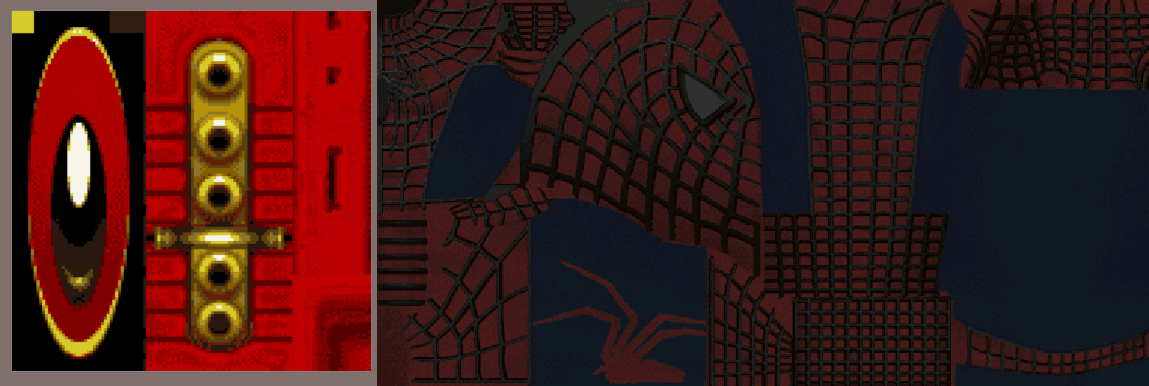
An example of textures between Shadow '05 & Spider-Man 2.
Now for the fun part: making it. You can do whatever you want for your texture, but keep a few things in mind:
- 1. the aspect ratio must stay the same. If a texture is at 128 x 128, you can make it bigger or smaller, but it cannot change aspect ratio (in this case, a perfect square). It will look like garbage if you do. Depending on your PC or phone specs, a bigger texture might be a bad idea. If you make a bunch of huge, 4k textures, the game will have to spend more resources loading them, which could drastically slow it down.
- 2. Depending on the game, having translucent or transparent colors can do different things. Be mindful.
- 3. (Spider-Man 2 specific) Spider-Man’s suit texture is designed to be mirrored. You do not have to design a full spider emblem, just make half of it & line it up with the edge of the image: in game, it will be mirrored & look proper.
- 4. DO NOT CHANGE THE NAME UNLESS YOU’RE SAVING YOUR MOD NEXT TO THE ORIGINAL TEXTURE!!!! Dolphin will not know what to do with the texture unless the name is the same. Otherwise, it will either not load it at all, or load it in the wrong spot.
Step 3: Seeing your Work
Whether you’re done with the texture, or need to test it to see what changed, it’s time to learn how to put em back in. First, head back to Dolphin, and go back into your game’s Properties window. From here, click Game Config > Graphics > Advanced, go to the Utility section, and click the checkboxes labeled “Load Custom Textures” & “Prefetch Custom Textures”. Now, when you open the game, it will look for your textures, and load them in. Prefetching just means it’ll do this way before it actually has to load the texture in its proper place, reducing chances of stuttering.
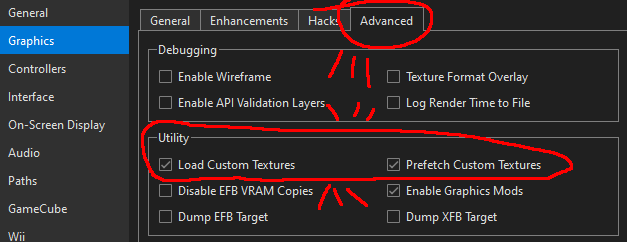
Doing it like this makes loading custom textures only apply to one game. You can also apply this to all of your games by clicking this setting in the general graphics options menu of dolphin.
Once you’re done here, get back to the User folder (File > Open User Folder). This time, go to Load > Textures, and then into the folder with your specific Game ID (again, for Spider-Man 2, it’s GK2E52). If you don’t see a folder with your game, just make a new folder & name it as such. Once you have that folder open, just drag and drop your finished .png files of your textures. Make sure they have the original texture name! If the one that was dumped was called tex1_256x128_m_13c4687d749123ed_14, then your modded texture here also has to be called tex1_256x128_m_13c4687d749123ed_14.
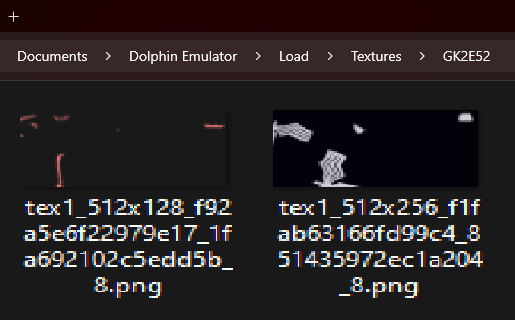
Once those are all put in place, it’s time for the moment of truth. (Make sure you turn off texture dumping at this point, you don’t need it.) Open your game, get into gameplay, and if you did things right…

You just modded a game!
Step 4: Closing Thoughts
That wasn’t so hard, was it? Texture Dumping is a simple and clean way to mod your favorite games, and I believe anyone can do it with a little time, practice, and trial-error testing. In fact, to celebrate, I got you a present…
If you’re planning on playing Spider-Man 2 on Gamecube anytime soon, why not play it with my own mod? I did this for fun (and because I’m not a fan of how the base suit looks in-game lol), and it made the whole playthrough so enjoyable. Just follow step 3, put the images into Load > Texture > GK2E52, and now you can be Bully Maguire a few years before that movie even existed! I hope this inspires you to take up texture modding yourself, and I hope I will find some time to explain how to do this to other games too.